Backup Aborted As Creation Of Virtual Device Set Failed – MSSQL Backup
KB ID : 100
Cause
MSSQL backup failed due to Virtual Device set creation failing issue.
Solution
Step 1:
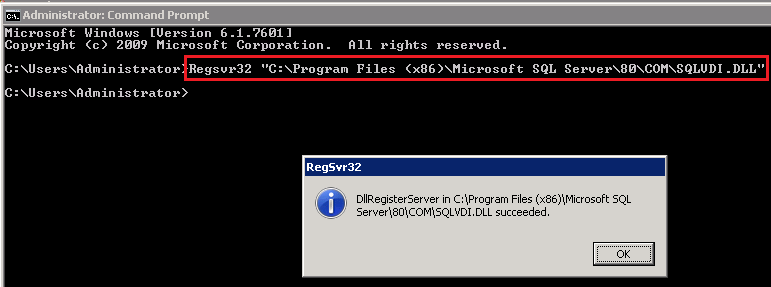
- The SQLVDI.DLL not registered properly in the registry. To register the SQLVDI.DLL, you need to run the following command in run or in command prompt with administrator privileges (Right click runas administrator).
- For 32-bit., Regsvr32 “C:\Program Files\Microsoft SQL Server\80\COM\SQLVDI.DLL” – This is the default path.
- For 64-bit., Regsvr32 “C:\Program Files (x86)\Microsoft SQL Server\80\COM\SQLVDI.DLL”
Step 2 :OSQL utility path not set correctly in the system environment variables. Vembu client uses OSQL utility to backup the sql databases. The default OSQL path is “C:\Program Files\Microsoft SQL Server\90\Tools\Binn”.To set the environmental variables, refer the steps mentioned below:
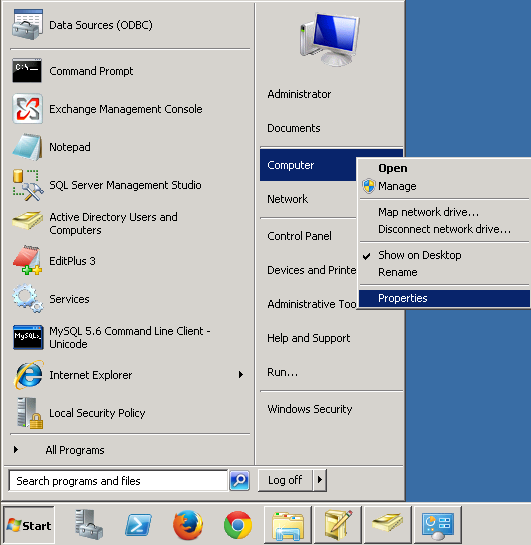
- Click START menu and right click on ‘My Computer’
- Select ‘Properties’
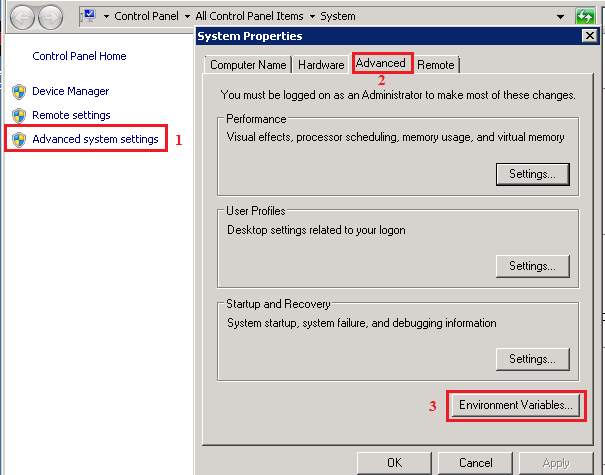
- Select ‘Advanced’ tab.
- Click on ‘Environment Variables’ button.
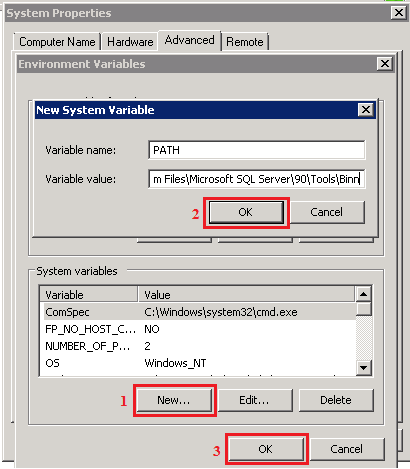
- Under “System Variables” section, if the “Path” variable does not exist, follow the steps below:
- Click ‘New’ button.
- Create the Path variable as follows:
- Variable Name: PATH
- Variable Value: C:\Program Files\Microsoft SQL Server\90\Tools\Binn
Step 3:
- Check the Vembu logon service user account is member of sysadmin. To check this follow the steps below in MSSQL management console.
- MGMT STUDIO —> Instance login —>Security—->logins–>click a particular user —> Server Roles and check the sysadmin option.
- Image resized, click image for full size.
Follow the steps below to add the OSQL.EXE path to environment variables:
- Click START menu and right click on ‘My Computer’
- Select ‘Properties’
- Select ‘Advanced’ tab.
- Click on ‘Environment Variables’ button.
- Under “System Variables” section, if the “Path” variable exists, click on “edit” button and append “C:\Program Files\Microsoft SQL Server\90\Tools\Binn” to “Variable Value”.
Step 4:Check BDRShield logon user has enough permission (administrator) to access the SQL databases.